
Reading time: ~13 minutes
Open the Assets tab in Google Ads and you'll see something overwhelming: fifteen-plus different asset types, each with its own setup process, each promising to make your ads more effective.
Most guides online tell you to "add as many as possible." Google itself recommends the same. But the honest truth is that not all asset types are equal — especially for a small business with limited time. Some genuinely lift click-through rates. Some sit unused because they're built for industries you're not in. And a few can actually hurt performance if configured badly.
This guide sorts every current Google Ads asset type into four clear tiers: essential, recommended, situational, and industry-specific. By the end, you'll know exactly which ones to set up first, which to add when you have time, and which to safely ignore.
Here's what we'll cover:
Let's get into it.
A quick refresher before we go deep. Assets used to be called "ad extensions" — Google renamed them in 2022 but many marketers still use the old term. Same thing.
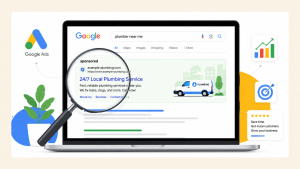
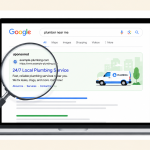
Assets are extra elements that Google can attach to your text ad — additional links, phone numbers, images, promotions, and so on. When your ad appears in search results, Google's algorithm decides which combination of assets to display based on the search query, device, user context, and predicted performance.
Three key things to know:
According to Google's official documentation on assets, adding multiple relevant asset types consistently improves performance across accounts. But "multiple" doesn't mean "all fifteen." Focus is what matters.
These three are non-negotiable. Every single Search campaign — regardless of your industry or budget — should have them configured. If your account doesn't have these three, that's the first thing to fix.
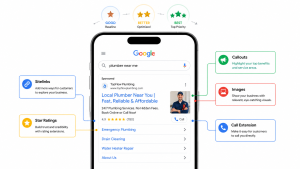
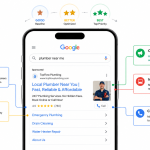
Sitelinks are the extra blue links that appear below your main ad, sending clickers to specific pages on your site.
Why they matter: They dramatically increase ad size and give visitors multiple entry points. Someone searching "plumber Sydney" might be looking for services, pricing, emergency contact, or reviews — sitelinks let you offer all four in one ad.
Best practice for small businesses:
Callouts are short, non-clickable text snippets (25 characters max) that appear below your ad description. Think of them as bonus selling points.
Why they matter: They let you cram extra credibility and value props into your ad without eating up your main headlines and descriptions. Google can show up to 10 at a time.
Best practice:
Structured snippets let you highlight lists of things under specific predefined headers — like "Services: Plumbing, Heating, Gas Fitting" or "Brands: Bosch, LG, Samsung."
Why they matter: They add a categorized, professional-looking line to your ad. Perfect for showing breadth of offering at a glance.
Best practice:
These four aren't strictly essential, but if you skip them you're leaving performance on the table. Set them up as your second wave.
Displays your business name prominently in your ad, often alongside your logo.
Why it matters: Brand recognition and trust. Especially valuable if your domain name doesn't clearly communicate who you are (e.g., joesplumbing.com.au vs. an abbreviated or acronym-based URL).
Best practice: Just enter your actual business name. Google verifies it against your website. Simple.
Adds your logo next to your ad — usually as a small circular icon.
Why it matters: Ads with logos feel more credible and professional. In a search results page dominated by text, a logo stands out.
Best practice:
Actual product or service photos that can appear inside your search ad on mobile devices.
Why it matters: Search ads with images stand out enormously on mobile — where more than half your clicks are coming from. According to Google, adding image assets can lift CTR by 10% or more in eligible searches.
Best practice:
Displays your phone number directly in the ad, with a click-to-call button on mobile.
Why it matters: Critical for service businesses (plumbers, electricians, dentists, lawyers) and any business where calls are your primary conversion. Removes one full step between "interested" and "reaching out."
Best practice:
Not sure which assets are worth your time?
Setting up 15+ asset types across every campaign takes hours if you're doing it yourself. We build asset sets for small businesses that focus on the ones that actually move performance — no wasted time on the rest.
Get help with your setup →These are powerful when they fit, useless when they don't. Set them up only if your business genuinely matches the use case.
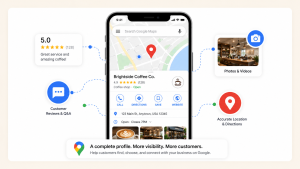
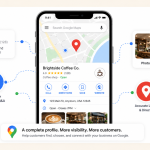
Displays your business address and links to your Google Business Profile.
Use it if: You have a physical location and want walk-in or in-person visits (retail, restaurants, clinics, salons, gyms, dealerships).
Skip it if: You're a purely online business, service-area business without a public storefront, or you don't want people showing up at your address.
Setup: Requires linking your Google Business Profile to Google Ads. Once linked, addresses appear automatically. Our Google Business Profile optimization guide covers the setup.
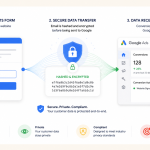
An in-ad form that captures leads without users having to click through to your site.
Use it if: You want to reduce friction between interest and lead capture, especially for high-consideration purchases (real estate, insurance, home services, B2B).
Skip it if: Your sales process needs deeper qualification, you don't have a clear single-offer landing page, or your CRM isn't set up to handle leads without more context.
Watch out: Leads from in-ad forms are often lower quality than leads from your actual website. Test with a small budget before scaling.
Adds a "Text us" button that lets users start an SMS conversation with your business directly from the ad.
Use it if: You actively monitor SMS during business hours and can reply within minutes. Some industries genuinely benefit — spa bookings, restaurant reservations, quick service inquiries.
Skip it if: You don't have anyone actively monitoring SMS. An unanswered text is worse than no text option at all.
Shows specific products or services with prices in a scrollable card format below your ad.
Use it if: You're proud of your pricing and want to attract price-conscious buyers, or you offer clearly-tiered service packages.
Skip it if: Your pricing is highly variable, quote-based, or you don't want to broadcast prices in ads (some service businesses deliberately don't).
Adds a highlighted "Sale," "Discount," or offer callout to your ad, often tied to a specific holiday or occasion.
Use it if: You're running a real promotion with a start and end date. Great for e-commerce sales, seasonal offers, or limited-time discounts.
Skip it if: You don't have an actual promotion running. Don't make one up just to use this asset.
Adds an "Install app" button linking to your iOS or Android app.
Use it if: You have a mobile app and app installs are a real business goal.
Skip it if: You don't have a mobile app. Which is most small businesses.
This is the one that puzzles most small business owners when they first see it in the Assets menu. Text disclaimers add legal or regulatory fine-print text to your ad — the kind of "terms apply" or "results may vary" text you see on financial, insurance, or pharmaceutical ads.
Use it if: You're in a regulated industry that requires disclosure language. Common examples:
Skip it if: Your business is anything else. Retail, restaurants, professional services, coaching, agencies, SaaS, home services — you don't need this asset.
Important: Text disclaimers exist purely for compliance. Unlike sitelinks or callouts, they won't boost your click-through rate — they add legal text that regulators require. If your industry doesn't require it, adding one just clutters your ad.
In the current Google Ads interface, you'll notice that Headline and Description also appear in the asset list. This is confusing at first — aren't those just parts of your ad?
Yes and no. In Responsive Search Ads (the current standard ad format), your headlines and descriptions are technically treated as assets that Google's algorithm rotates and combines. You provide up to 15 headlines and 4 descriptions, and Google tests different combinations to find the best-performing mix.
Practically, you don't manage these in the Assets tab — you manage them inside your ads. But knowing they're technically assets explains why they appear in the list.
Assets can be applied at the account, campaign, or ad group level. If you set an asset at the ad group level, it overrides anything set at the campaign or account level. So if you have great callouts at your account level but accidentally set one at an ad group, only the ad group callouts show — you might lose serve of your best ones. Be intentional about level.
If your headline says "Free Consultation," your callout says "Free Consultation," and your sitelink description says "Free Consultation" — you've wasted three chances to say something new. Each asset type should communicate different value. Think of them as a team, not backup singers.
By default, Google generates automated assets for your account — dynamic sitelinks, dynamic callouts, seller ratings, and more. Most account owners never review these. Go to the Assets tab, click the "Source" column, and check what Google is auto-generating on your behalf. Sometimes it's helpful. Sometimes it's making claims you'd rather not make.
Each asset shows individual performance data — impressions, clicks, cost. Log in monthly and check which ones are actually being served. If an asset has been eligible for months with zero impressions, Google's telling you it's not competitive. Replace it or remove it.
Ten sitelinks all pointing to variations of your "Services" page confuses Google's algorithm and dilutes what actually gets shown. Four strong, distinct sitelinks outperform ten redundant ones.
If you're starting from scratch, here's the setup order I'd recommend:
This should take you about 4–5 hours total across three weeks. And it puts you ahead of most competitors, who either add nothing or add everything without discrimination.
Google's advice to "add as many asset types as possible" is technically true but strategically incomplete. What's really true is: add as many relevant asset types as possible. The distinction matters.
The three essential assets — sitelinks, callouts, structured snippets — will move the needle more than the other twelve combined for most small businesses. Get those right first. Add the Tier 2 assets as your second wave. Cherry-pick Tier 3 based on genuine fit. And unless you're advertising in a regulated space, ignore Tier 4 entirely.
Assets are one of the highest-leverage improvements you can make to an existing campaign. An hour or two of focused work here can lift your CTR by 15–25%, which flows into everything: better Quality Score, lower CPCs, more clicks for the same budget.
If your campaign is running with the default setup Google gave you, this is where to focus next.
Setting up 15+ Google Ads asset types properly takes hours of focused work. We build asset sets for small businesses that focus on the ones that actually lift performance — no wasted time, no clutter.
Published by googlemarketing.io — helping small businesses get more out of Google Ads, Analytics, Tag Manager, and SEO.



Copyright 2026 Altic LLC All rights reserved.